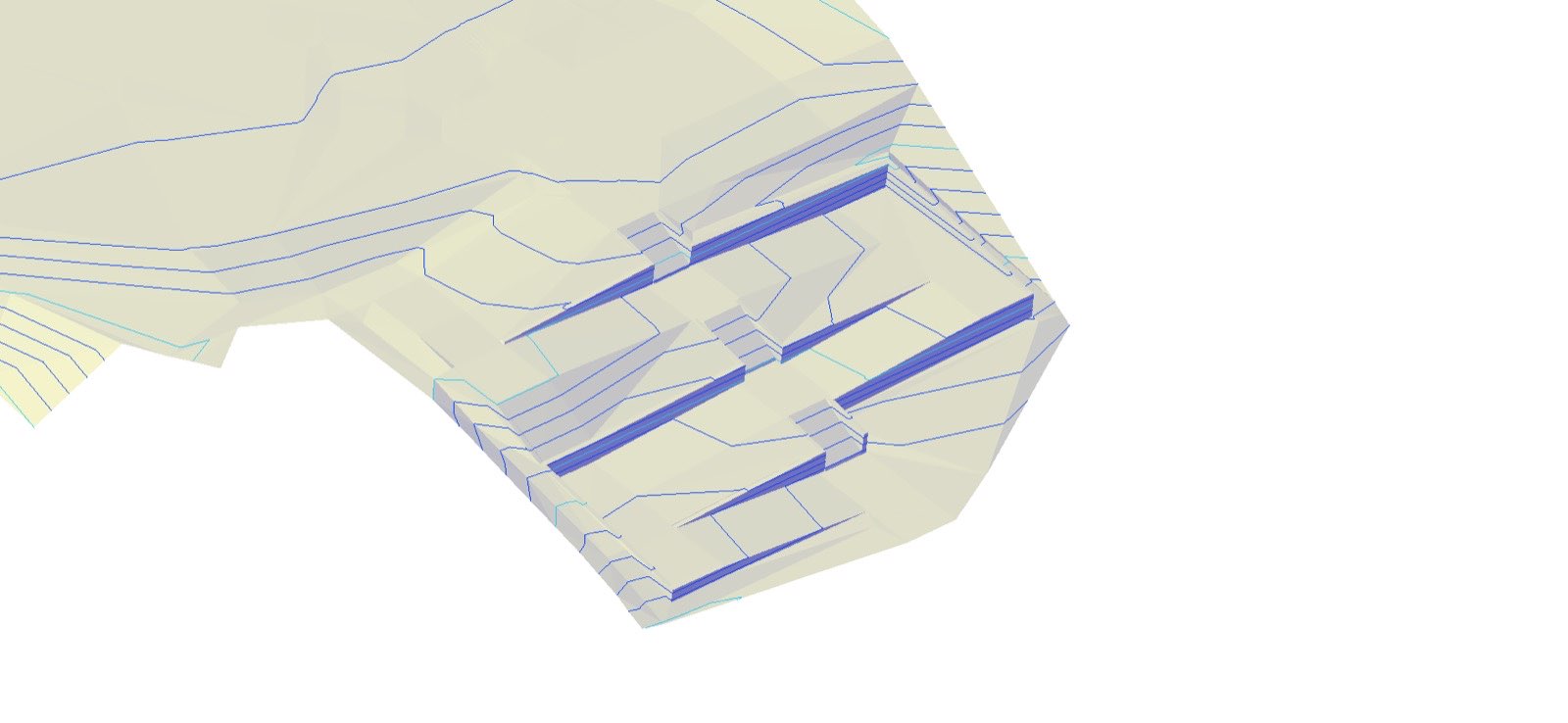
Many landscape architects meet Civil 3D the same way: a project lands that needs real grading, the civil engineer sends over a surface, and suddenly you're expected to work in software that seems designed for highway interchanges. It's intimidating, but it doesn't need to be. Here's where I'd start.
Why it's worth learning
Grading is design. When you grade in Civil 3D, you're designing a three-dimensional surface you can check. You can see slopes, read spot elevations anywhere, calculate cut and fill, and confirm that water moves where you intend. It also puts you in the same file format as your civil engineer, which makes coordination much smoother.
The mental model: everything flows into a surface
The single most useful idea is that Civil 3D is built around surfaces, and a surface is built from data. Points, breaklines, contours, and feature lines are inputs. The surface is the result. Labels and analysis read from the surface.
Once you see it that way, a lot of confusing behavior makes sense. If the surface looks wrong, the problem is almost always in the inputs or the order they're applied, not in the surface itself.
- Existing surface: usually built from survey points and breaklines, or from contours.
- Feature lines: 3D lines that define your design edges, like curbs, wall tops, path edges, and ridges.
- Grading objects: project from a feature line to a target, such as a slope down to the existing surface.
- Proposed surface: built from your feature lines and gradings, then compared against existing.
A first-week practice sequence
Skip the full tutorial series. Instead, work through a small, realistic exercise in this order:
- Build an existing surface from a set of points or contours, then turn on slope and elevation analysis to see it.
- Draw a simple patio as a feature line and set its elevations so it drains at 1 to 2 percent.
- Grade out from the patio to the existing surface at a fixed slope, and look at where the daylight line lands.
- Create a proposed surface from the patio and grading, and label a few spot elevations and slopes.
- Compare surfaces with a volume surface to see your cut and fill.
That sequence touches nearly every core concept, and it's small enough to finish in an afternoon.
Mistakes that trip up almost everyone
- Ignoring units and coordinate systems. Check drawing units and the coordinate system before you import survey data. Fixing them later is painful.
- Drowning in styles. Civil 3D has styles for everything. Start from a decent template and change styles only when you need to.
- Editing the wrong thing. Editing a surface directly (deleting triangles, for example) can hide a problem in your inputs. Fix the data first.
- Feature line conflicts. When feature lines cross or share endpoints at different elevations, surfaces get spiky. Learn to spot and fix crossing breaklines early.
- Trying to learn everything at once. Pipe networks, corridors, and alignments all have their place, but you can grade an entire landscape project without them at first.
When AutoCAD is still enough
Not every project needs Civil 3D. For small residential work with simple grading, spot elevations and contours drawn in AutoCAD can be perfectly fine. Civil 3D pays off when grading gets complex, when you need volumes, or when you're coordinating closely with a civil engineer.
Want help getting started?
I tutor landscape architects, students, and site designers in Civil 3D one-on-one, working in their own projects. If you'd like a hand, see Civil 3D tutoring or book a session.